Spatial Manager allows you to create text labels in the drawing from selected objects on the drawing or map. One improvement in the latest versions is the option to create labels using multiple data fields and properties of the objects to be labeled.
In addition, it is possible to set different representations (style, size, color etc.) for each field of the created labels. The following sections describe the available options.
Available for AutoCAD, BricsCAD, ZWCAD and GstarCAD.
1 - Start labeling
To start labeling, click the ‘Labels’ icon in the ‘Spatial Manager’ ribbon or execute the command ‘SPMLABEL’ in the command line.

Label button on the ribbon
2 - Select objects to be labeled
Select the objects in the drawing to be labeled. The selection options are:
- All objects in the drawing
- Only selected objects in the drawing
- All objects in a layer
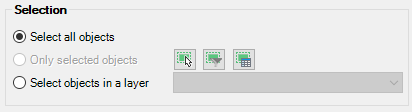
Object selection
3 - Set the fields and properties to be labeled and their display options
Add the fields and properties of the objects you want to use to create the labels.
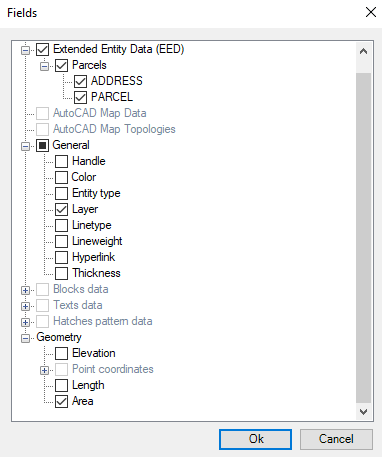
Field and property selection
Arrange them with the up and down arrows and set the display options (font style, color, relative size etc.) for the desired fields.
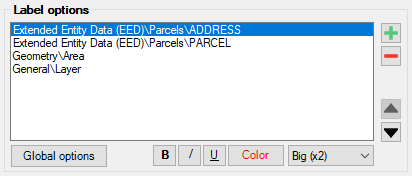
Label options
If necessary, set the global display options (font name, default size, justification, mask labels etc.).
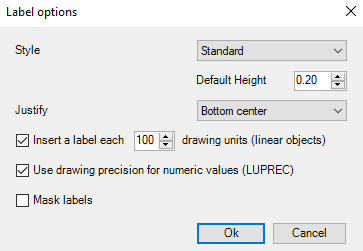
General label options
4 - Set general options
- Target layer
- Apply random colors if new layers are created
- Treat closed polylines as polygons (if checked the label is created on the centroid, if not, multiple labels are created over the perimeter)
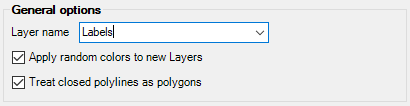
General options
5 - Result
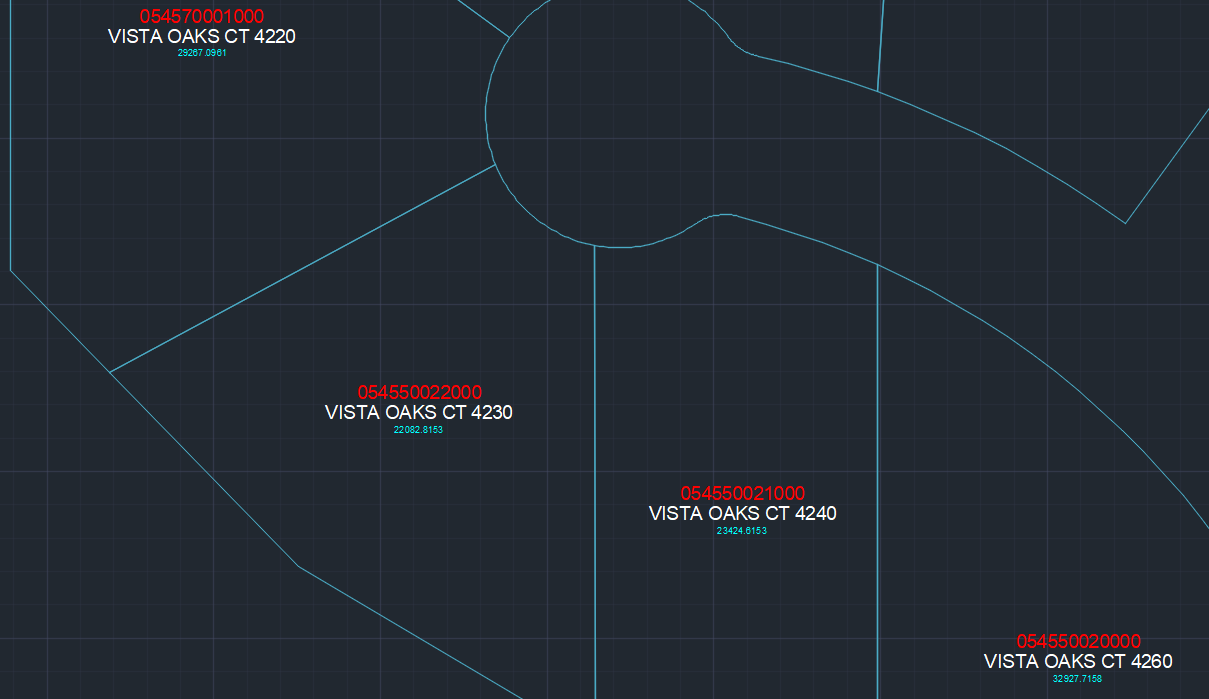
Labeling process result



