Spatial Manager lets you show or hide loaded maps and quickly switch between them directly from its palette. Compare an aerial image with a street map while working on your drawing, or place maps in front of drawing objects to display additional information. The following steps explain how to load maps, control their visibility and manage their display order.
Available for AutoCAD, BricsCAD, ZWCAD and GstarCAD.
1. Run the SPMBGMAPSHOW command
- Run SPMBGMAPSHOW and choose a background map.
2. Show the palette and toggle map visibility
- Open the Spatial Manager palette with the SPM command.
- Select the Explorer tab and expand the Imagery branch.
- Click the light bulb icon next to the map to show or hide it. Hidden maps remain in the tree, ready to be shown again.
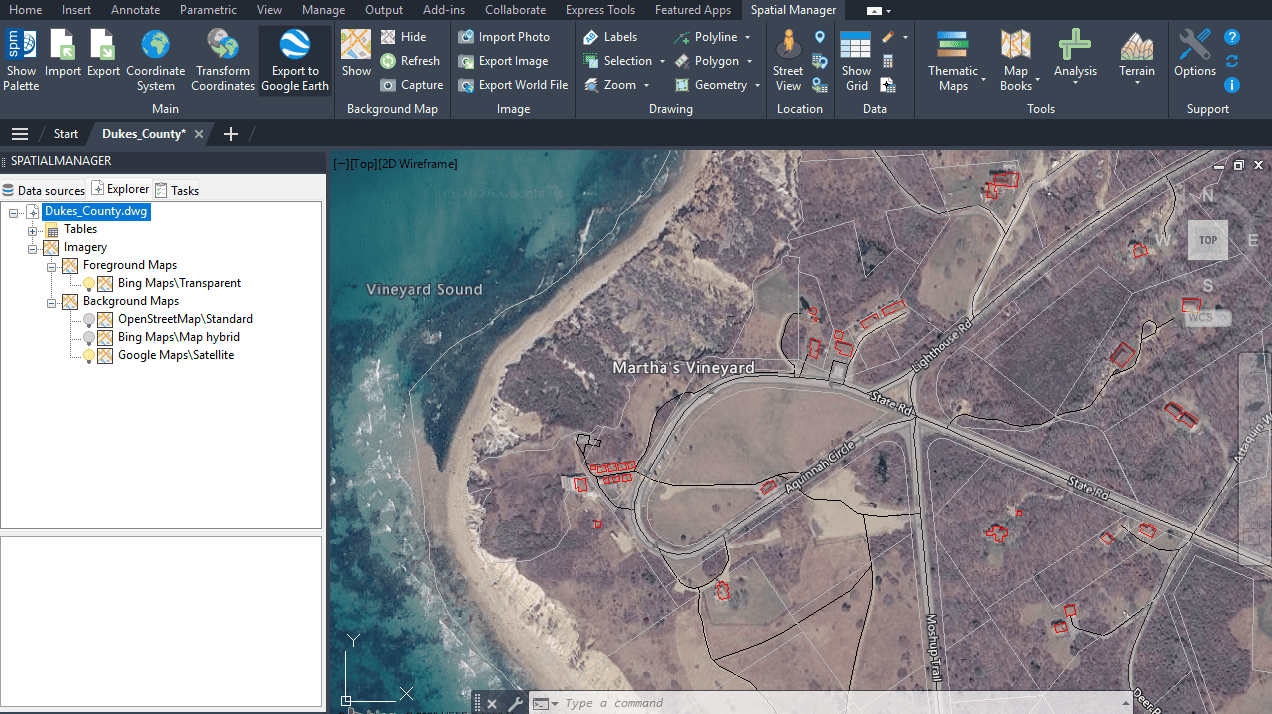
Control map visibility from the Spatial Manager palette
3. Show another map
- Run SPMBGMAPSHOW again and choose another map of the same area.
- The new map is added to the tree and displayed in the drawing.
4. Switch between background maps
- In the palette, click the light bulb icon next to the visible map to hide it.
- Click the light bulb icon next to the map you want to show.
- Repeat these steps to compare the references directly from the palette.
For example, when reviewing access to a parcel, show the aerial image to identify features on the ground, then switch to the street map to check the road network. Keeping both references in the palette makes it easy to repeat this comparison as you work.
5. Also add maps in front of objects
- Move a map to the foreground using its context menu in the palette.
- Foreground maps appear in front of drawing objects. Use maps with transparent areas to keep the objects beneath them visible.
- Use the light bulb icons to control their visibility, just as with background maps.
If several maps are visible, their display order determines which appears on top. Drag maps within the tree to change that order. An opaque map can cover another map even when both are set to visible; hide the upper map to see the one beneath it.
You can also combine maps with transparent areas to view several sources together. Learn more in Multiple simultaneous background maps and the map management manual.



