Download and import official Land Information New Zealand (LINZ) data into a DWG using Spatial Manager, either through open services (WFS / OGC API Features) or distributed files (SHP, GeoJSON, etc.). Set the proper CRS (usually NZGD2000 / New Zealand Transverse Mercator), create the data source in the palette, filter the area of interest, and run the import to generate CAD entities with linked attribute data.
LINZ (Land Information New Zealand) is the government agency responsible for managing New Zealand’s land and property information, geospatial data, and hydrographic services. It oversees the cadastre (property boundaries and ownership), topographic mapping, and place naming.
Available for AutoCAD, BricsCAD, ZWCAD, GstarCAD and Desktop.
Follow these simple steps to import LINZ data to DWG or DXF:
1. Register and create a free account
- To download LINZ data, a free account is required.
- Open LINZ account register URL and follow the registration steps.
- This will create a Koordinates ID account, valid for accessing LINZ datasets.
2. Log in with the created user
- Open LINZ data portal
- In the top-right corner, click “Log in” and log in with the created user.
3. Explore the catalog, search, and select a dataset
- Explore the existing datasets and use the search box to find the desired dataset, for example, “Parcels.”
- Click the desired dataset.
4. Add to the map and preview
- On the dataset page, click the “Map +” button.
- This will show the map viewer with the dataset loaded.
5. Export and select coordinate reference system
- Click the “…” button next to the “Map +” button.
- Click the “Export” option.
- Select the Coordinate Reference System (CRS), for example, “NZGD2000 / NZCS2000” (EPSG:3851).
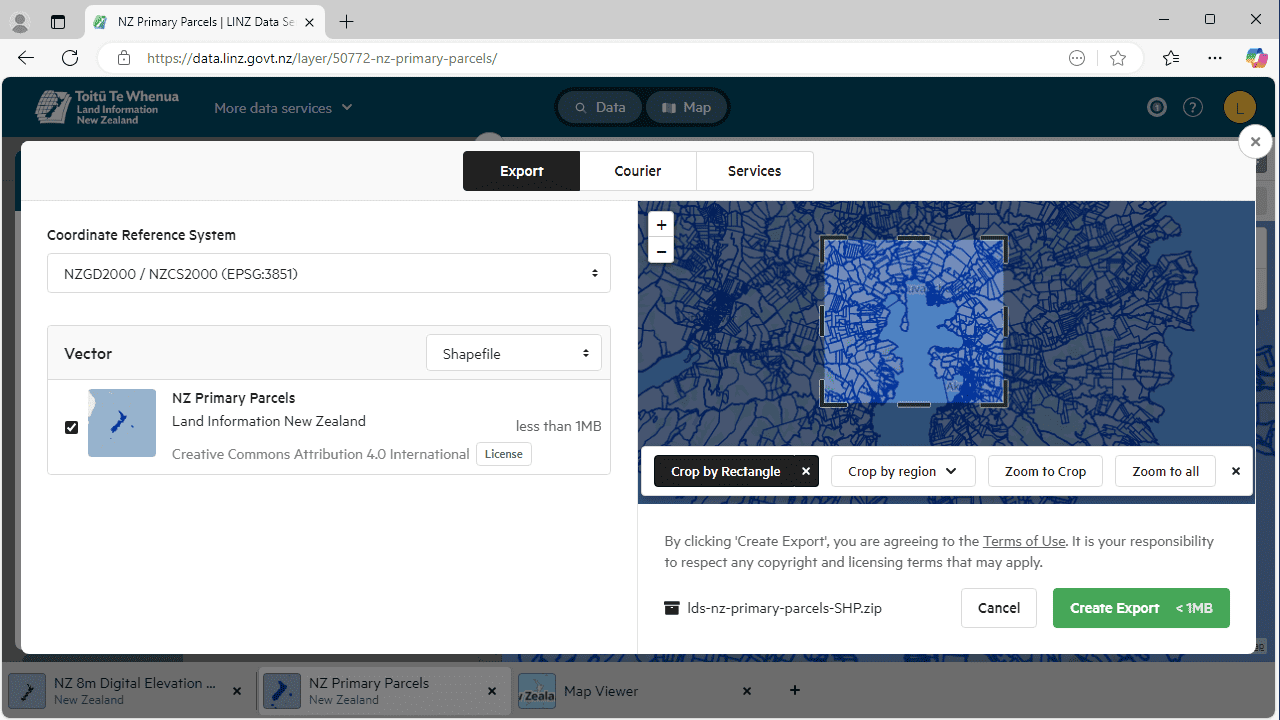
LINZ data
6. Select file format
- Select any of the formats compatible with Spatial Manager, for example: Shapefile (recommended), MapInfo TAB/MIF, CSV, GeoPackage/SQLite, GeoDatabase, etc.
7. Crop the desired area
- On the map viewer, use the crop tool to select the area of interest.
8. Create export and download
- Click the “Create Export” button.
- The process may take some time depending on the area and dataset size.
- Once the export is ready, a download link will be available.
9. Open the ZIP file to a folder if required (depending on file format)
- Download the exported file.
- If the file is compressed (ZIP), extract it to a folder.
10. Execute SPMIMPORT command and import data
- In Spatial Manager, execute the SPMIMPORT command (for Spatial Manager Desktop, search the files in the “Data Sources” panel).
11. Optionally show a background map
- For better visualization, you can show a background map using the SPMBGMAPSHOW command (for Spatial Manager Desktop, use the “Background Maps” panel).
12. Attached data is also imported (execute SPMDATATABLEGRID)
- The attribute data is imported and linked to the CAD entities.
- You can view and manage the data using the SPMDATATABLEGRID command (for Spatial Manager Desktop, use the “Data Table” panel).
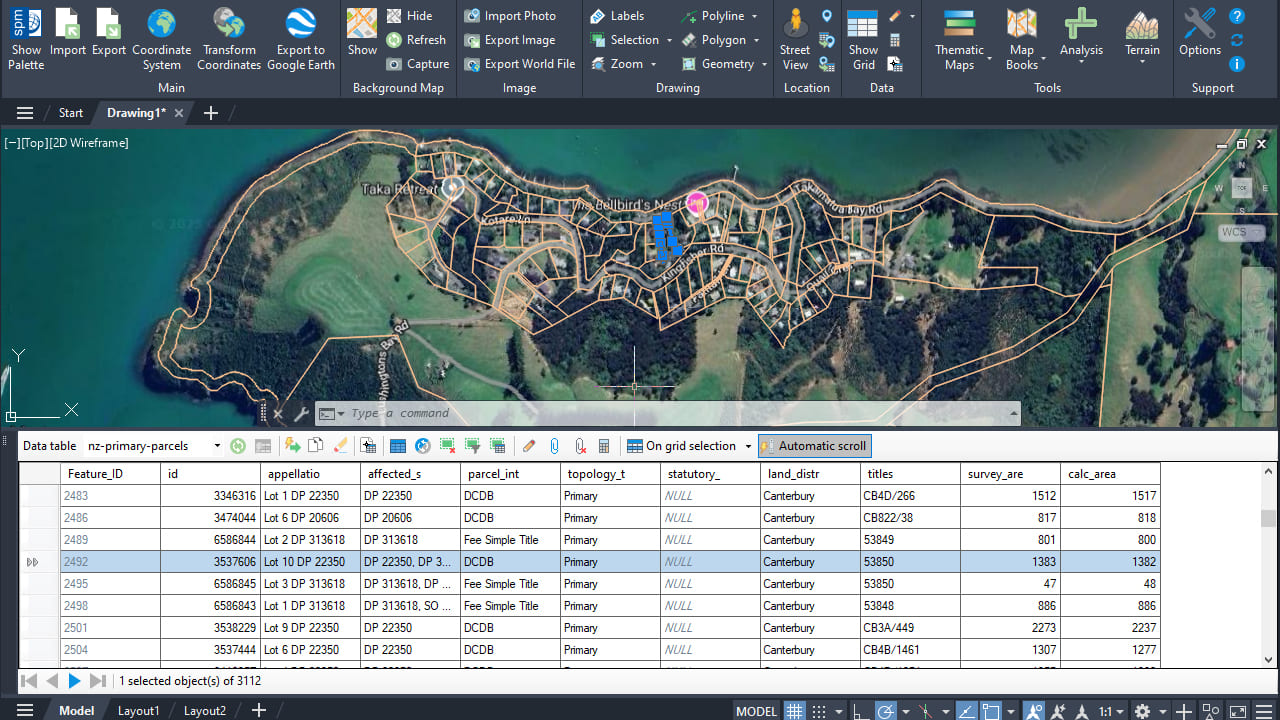
LINZ data
Note: Some features are available only in the Standard or Professional editions.



