Spatial Manager has utilities for working with terrains and elevations. One of them lets you search elevations for existing points. By following a few steps, it is possible to create a data field and store the elevation value in it, even adding it to other existing fields.
Available for AutoCAD, BricsCAD, ZWCAD and GstarCAD.
1. Existing points with data without elevation
- If you have points with X-Y coordinates but no elevation values, the goal is to add a data field with the elevation value (Z coordinate).
2. Create a layer and download elevations
- Create a new layer and set it as the current layer.
- Execute the SPMTERRAIN command.
- Select the “Select points from drawing” option and select the existing points in the drawing.
- When asked if you want to download elevations from online services, click Yes.
- In the “Objects to create” section, check “3D points” and click OK.
- A new set of points will be created in the current layer.
3. Create table and field for elevation values
- These new points have elevation/Z position, but they have no data attached.
- Execute the SPMDATATABLEDEFINE command and create a new table with a field of type decimal number.
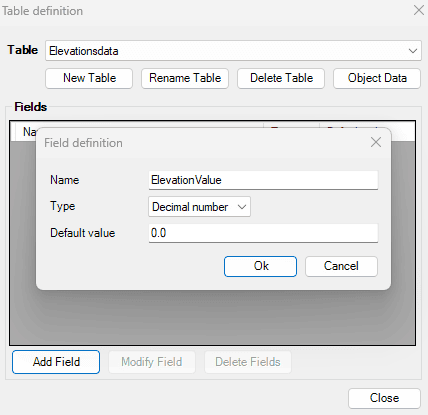
create table and field for elevation
4. Attach table with points with elevations
- Select all the points created in step 2.
- Execute the SPMDATATABLEATTACH command.
- Select the table created in step 3 and the “Attach to the current selection” option.
- Now the points have the table attached but with empty values.
5. Set elevation value from geometry
- Execute the SPMDATACALCULATOR command.
- Select the new empty table as the source table.
- In the expression panel, select Geometry/ElevationZ.
- For “Save value in”, select “Update existing field” and the empty field created in step 3, then click OK.
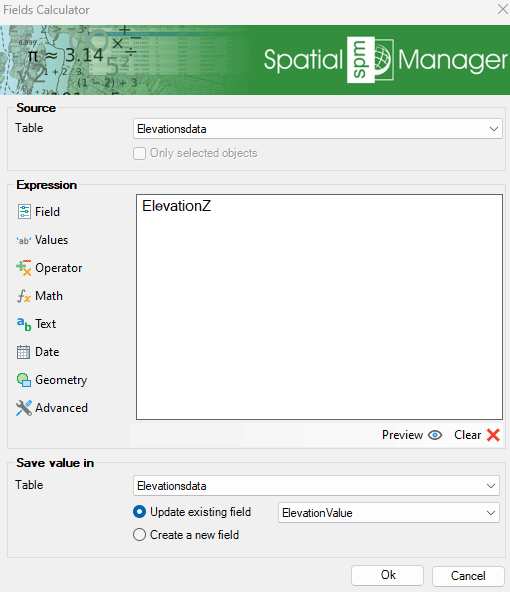
calculate elevation value to field
- Now the points have the elevation value both in the Z position for the geometry and in the attached data table.
6. Join previous data and elevation data
- In the last step, original points and new points with height values will be joined.
- Execute the SPMOVERLAY command.
- As source, select the original points layer.
- As overlay, select the new points layer.
- For operation, keep Intersect selected.
- Set the desired name of the final resulting layer and table.
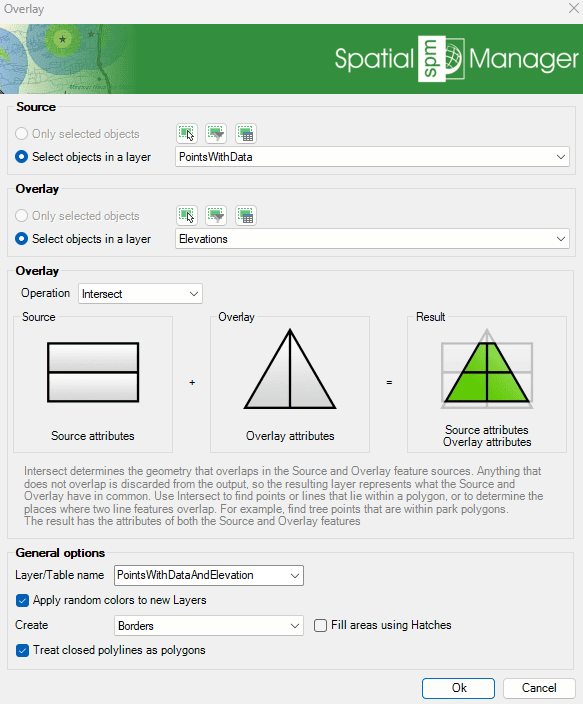
join data fields
- Review the final result; the created points have both source data fields and a new field for elevation/height.
Note: Some features are available only in the Standard or Professional editions.



