Spatial Manager creates buffer polygons around points to show the area within a chosen distance of each location. This is useful for showing a facility’s service area or finding objects near survey points. You can use the same distance for every point or take a different value for each point from its data table. You can also merge overlapping buffers into a single area.
Available for AutoCAD, BricsCAD, ZWCAD and GstarCAD.
In the example video, a buffer of 500 meters is created around the medical centers. A spatial query is then used to find the buildings within that range.
1. Run SPMBUFFER
- Run SPMBUFFER or choose Tools > Analysis > Buffer.
2. Select points and options
- Select the source points manually, by query or layer.
- Enter a fixed width, or choose a data field to provide a value for each point.
- Set the target layer and choose whether to merge overlapping buffer polygons.
3. Buffer analysis
- Use the resulting buffer polygons for analysis.
- Run SPMSPATIALQUERY to select objects that intersect the buffers. You can then highlight them, place them on a new layer, or export them to a new dataset.
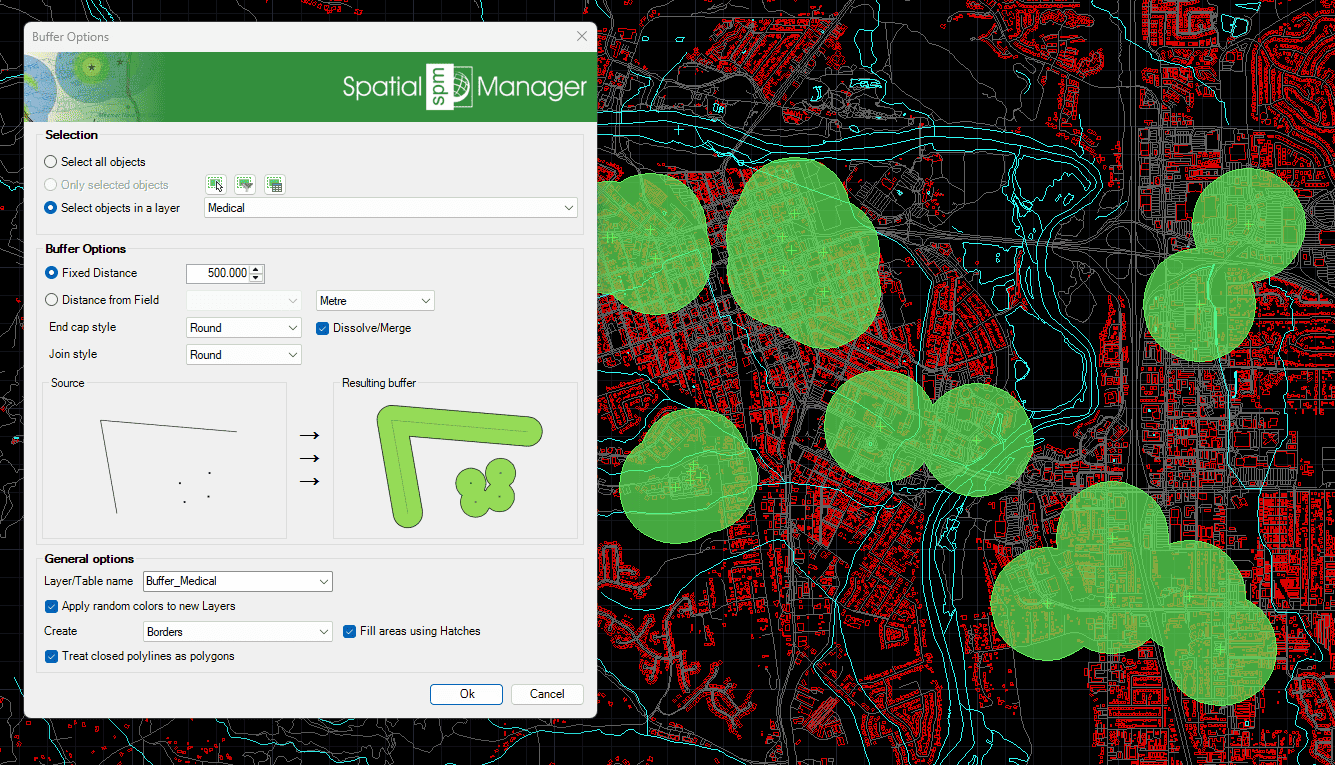
Points buffer



