View detailed, high-resolution LINZ background maps directly in your DWG through WMTS services–no prior tile download required. Spatial Manager connects to the LINZ WMTS endpoint, requests only the tiles needed for the current view, and transparently reprojects them to the active drawing coordinate reference system. LINZ offers updated aerial imagery maps for New Zealand.
Available for AutoCAD, BricsCAD, ZWCAD, GstarCAD and Desktop.
Follow these simple steps for connecting with LINZ WMTS services:
1. Register and create a free account
- To connect to LINZ services, a free account is required.
- Open LINZ account register URL and follow the registration steps.
- This will create a Koordinates ID account, valid for accessing LINZ datasets.
2. Log in with the created user
- Open LINZ data portal.
- In the top-right corner, click “Log in” and log in with the created user.
3. Explore the catalog, search, and select aerial imagery
- Explore the existing datasets and use the search box to find the aerial imagery of your desired area.
- Suitable layers must appear as the “Raster Layer” type.
- Next to each dataset, the update date is shown.
- Click the desired dataset.
4. Add to the map and preview
- On the dataset page, click the “Map +” button.
- This will show the map viewer with the dataset loaded.
5. Copy WMTS service URL
- Go to the “Services and APIs” tab.
- Find the WMTS section and copy the URL of the WMTS service with the “Layer WMTS Capabilities” label.
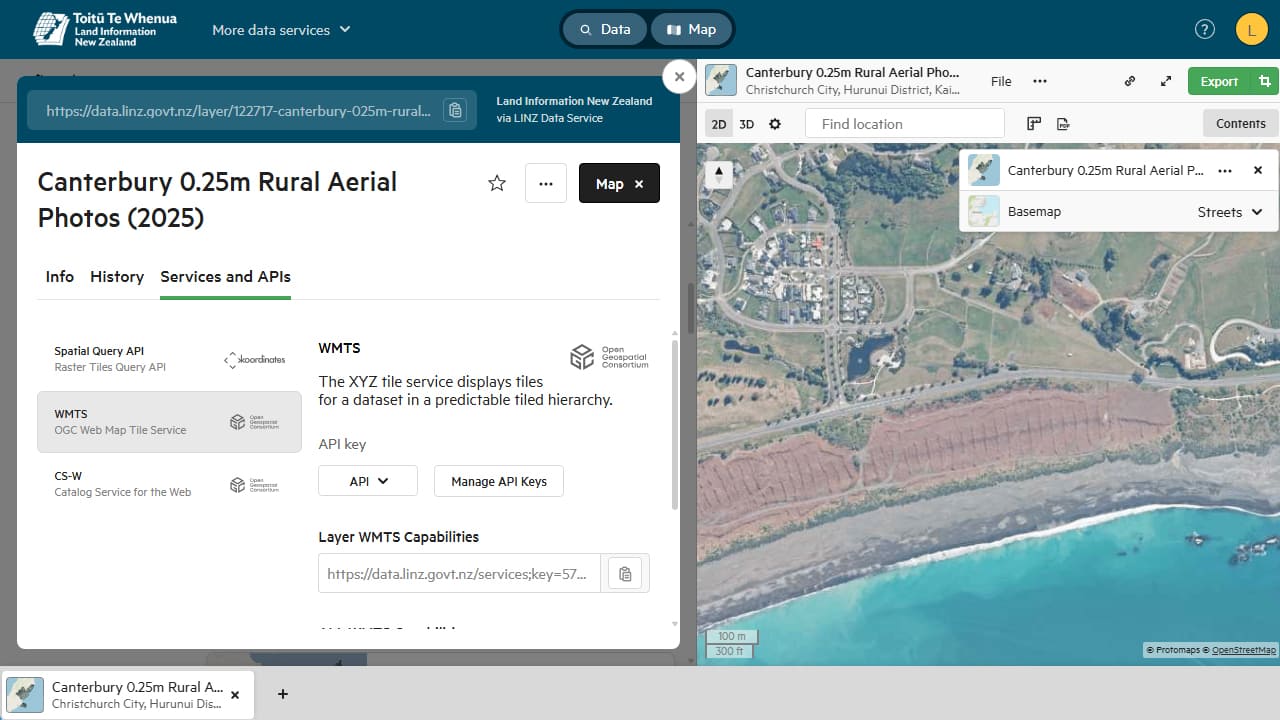
LINZ data
6. Define a custom map
- Run the SPMBGMAPSHOW command (for Spatial Manager Desktop, open the “Background Maps” panel).
- Click the “Configure Background Maps” button and then the “New” button.
- In the “User map” dialog, check the “WMS/WMTS” option.
- Paste the copied WMTS URL in the “URL” field and click “Get List of Layers”.
- The layer should appear in the list below; with the “Show preview” option, a preview of the map is shown.
- Optionally, assign a name to group multiple custom maps.
- Click “OK” to save the custom map.
7. View the map
- In the background map selector, select the created custom map.
- The map will be loaded in the current view and updated to the current zoom level and drawing extents.
- Optionally, alternate with other maps (predefined or custom) to compare differences.
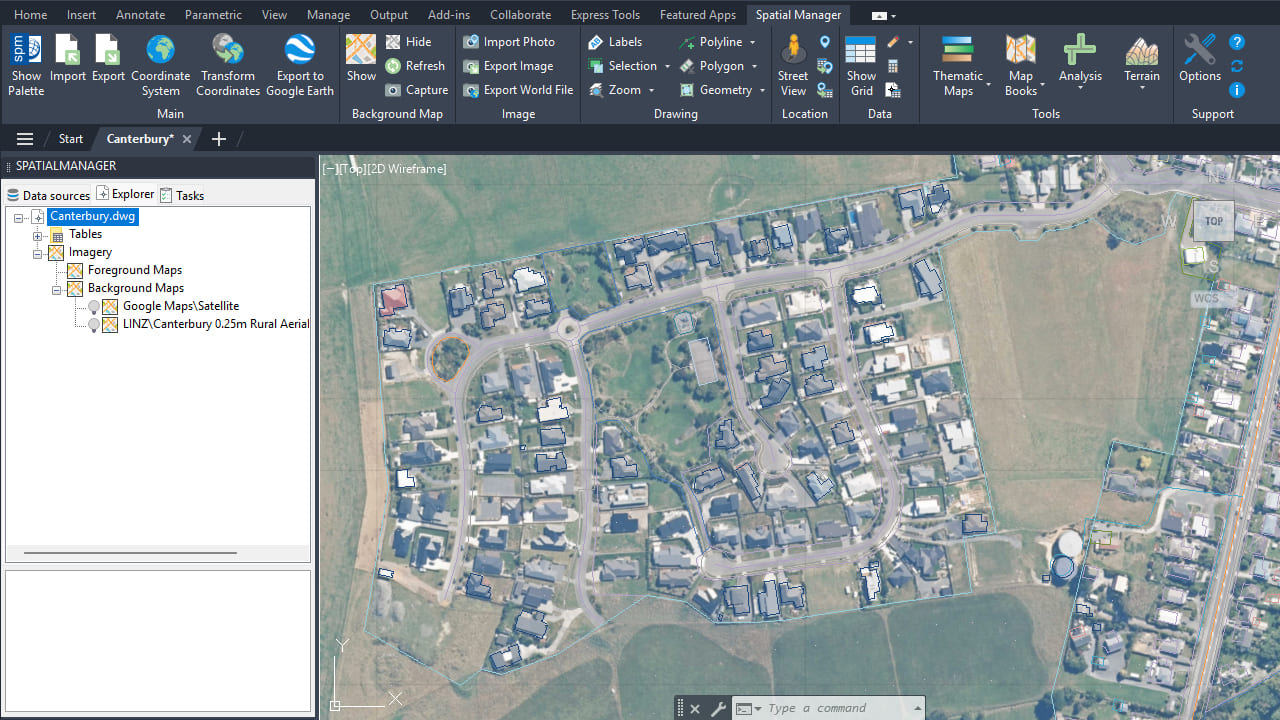
LINZ data
Many countries and organizations around the world offer free/open WMS/WMTS services with aerial imagery or other types of maps that can be used as background maps in Spatial Manager products. Ask your local government or search the web to find them.
Note: Some features are available only in the Standard or Professional editions.



