Learn quickly and easily how to integrate Google Earth high-quality images with your DWG using your preferred CAD platform. A wide range of resolutions are available up to 8K UHD, which provide detailed aerial imagery and enrich your design workflow.
Available for AutoCAD, BricsCAD, ZWCAD and GstarCAD.
1. Locate your working area
- If you have a DWG already geolocated, execute the SPMCREATEKML command, create a KML in one step and open it with Google Earth.
- To start a new project, go directly to step 2 and locate it in Google Earth by searching for your location.
2. Set the desired layers and view in Google Earth
- Once the view is located, hide your project elements.
- Then enable the layers you want to include and hide the others.
3. Set top-north view
- Click on the map and press the R key or go to the menu “View/Reset/Tilt and Compass”.
4. Create .geprint auxiliar file
- Click the “Save image” icon or go to the menu “File/Save/Save image”. You can also use the keyboard shortcut Ctrl+Alt+S.
- Select your desired resolution, up to 8K UHD (do not select the “Maximum” option, because the variable image proportion will not be recognized and cannot be imported).
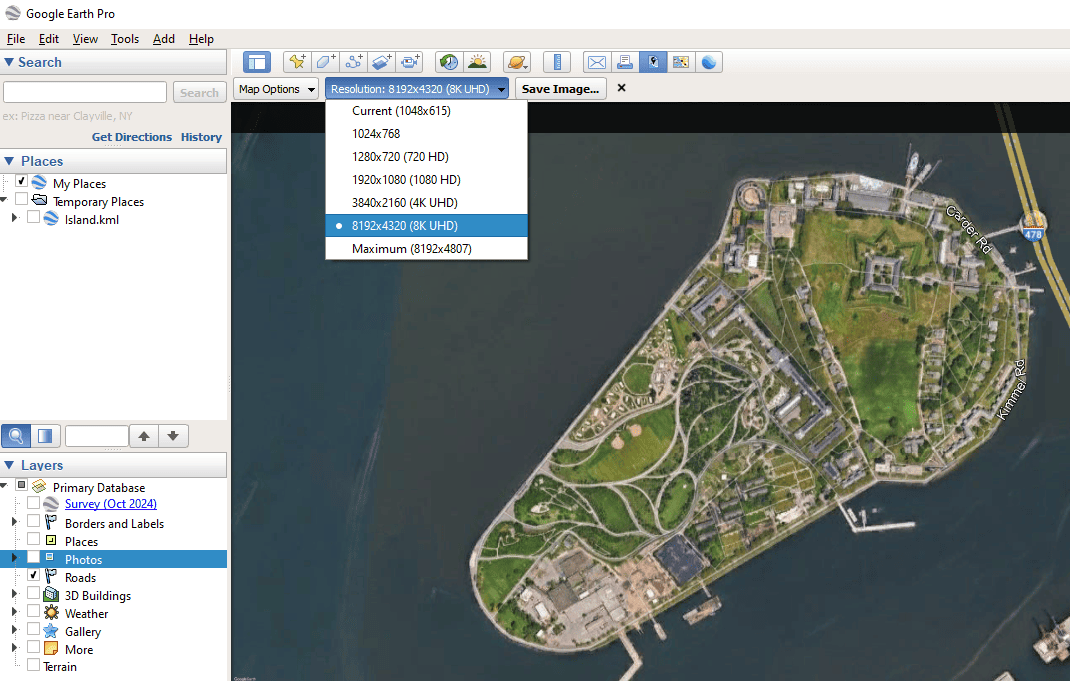
.geprint image resolutions
- Click “Map Options” and hide the undesired elements: Title and Description, Legend, Scale, Compass, etc.
- Above, in the “Map Configuration” section, click “Save…” and save the .geprint configuration file.
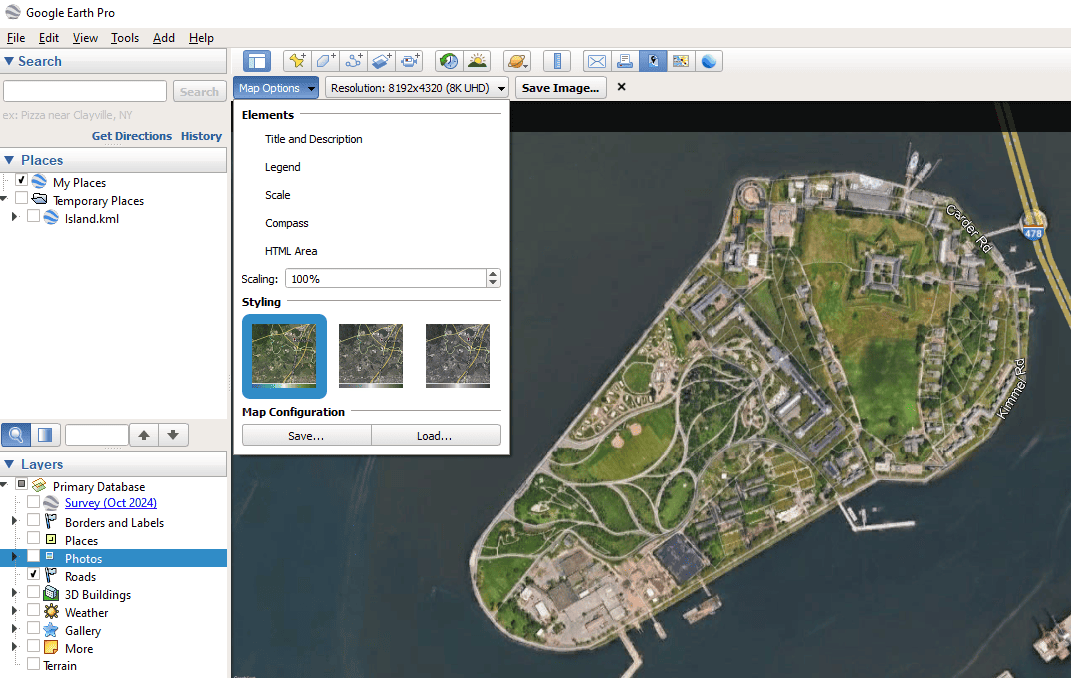
.geprint file options
5. Save image file
- Click “Save image…” and save the image next to the .geprint saved in step 4. It is recommended to use the same file name; otherwise, the .geprint must be selected manually in the final step.
6. Import using Spatial Manager
- Import the saved image using the SPMIMPORT command or directly from the Spatial Manager palette (the SPM command).
- If not selected automatically, check the “Google Earth print (.geprint)” option and select the .geprint file.
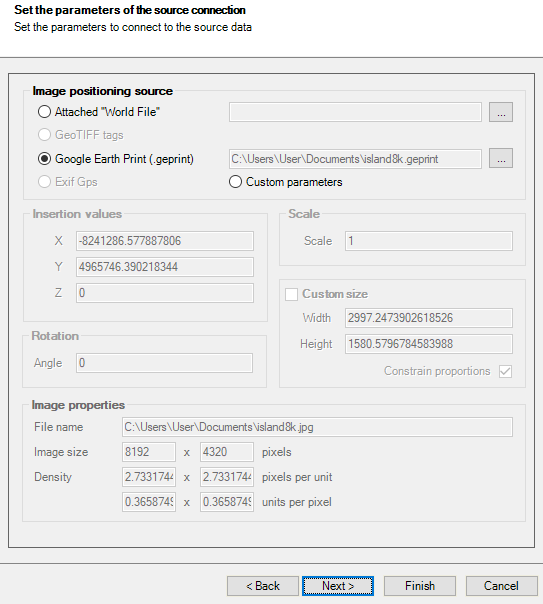
.geprint import options
7. Review the imported raster image
- Select the image and send it to the back (DRAWORDER command).
Notes: - This method is compatible with Google Earth Pro on desktop, not Google Earth on the web or on mobile. - Some features are available only in the Standard or Professional editions.



