Generates a CAD table directly in the drawing using the data linked to the objects. Users can define which fields will appear as columns, making the table highly customizable. In addition, it is possible to apply formatting options such as coloring rows based on the layers or entities of the related objects.
Available for AutoCAD, BricsCAD, ZWCAD and GstarCAD.
1. Open data table grid
- Run the SPMDATATABLEGRID command; the data table grid opens.
2. Select objects
- Select the objects for which you want to draw the table.
- If you do not select any object, the entire table will be inserted.
3. Draw data table options
- Click “Draw table into drawing” button on the grid header toolbar.
- Select whether you want to insert table header and column names.
- Choose which columns will be inserted, and for each field, options like sorting, grouping, and coloring by object or layer.
4. Set data table location and size
- Set the table insertion point and scale it to the desired size.
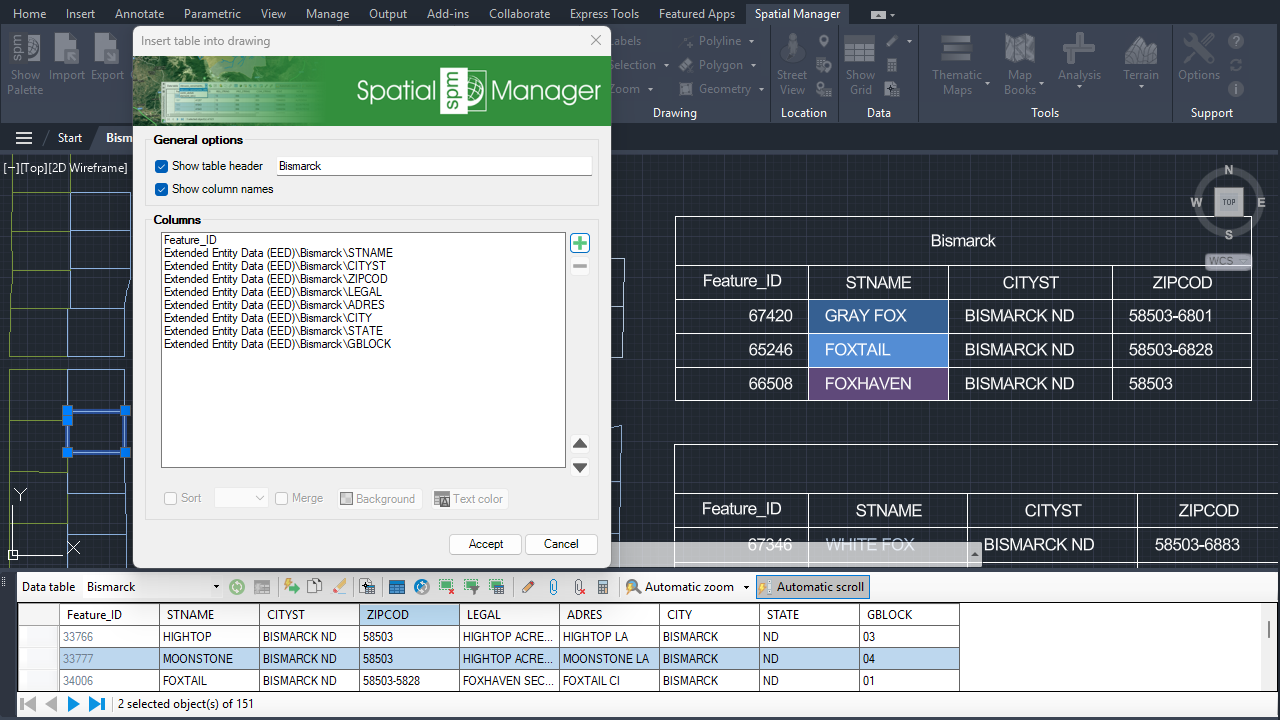
Data table in the DWG
5. Insert full data table
- If you do not select any object from the data table, or if you select the full table, the complete data table will be drawn.
6. Also insert from the Spatial Manager palette
- Without opening the grid, it can also be done from the main palette (SPM command).
- Go to the “Drawing explorer” tab group.
- Navigate to the desired table and from the context menu, click “Data table/Draw into drawing”.
Note: Some features are available only in the Standard or Professional editions.



