Inserts a thematic map legend directly into the drawing, making it easier to interpret and communicate the meaning of the applied styles. The legend represents the categories or value ranges used in the map at the time it is created, providing a clear and consistent reference for anyone reviewing the drawing. The legend can also be placed in layouts (paper space) and included in printouts.
Available for AutoCAD, BricsCAD, ZWCAD and GstarCAD.
1. View object data in grid
- Run the SPMDATATABLEGRID command, the data table grid opens.
- Review the data fields and identify which one will be used to create the thematic map.
2. Create thematic map
- Open the Spatial Manager main palette with the SPM command.
- In the Explorer tab, locate Themes under the table and choose Create theme from the context menu.
- Define the thematic style rules and assign colors for each value. Optionally, enable Fill closed curves for better visualization.
- These steps can also be performed by running the SPMTHEMATICMAP command.
3. Insert thematic map legend
- From the theme’s context menu, click Insert legend on drawing.
- Click to define the insertion point, then click again to set the scale.
- The legend can also be placed in layouts (paper space) for printing.
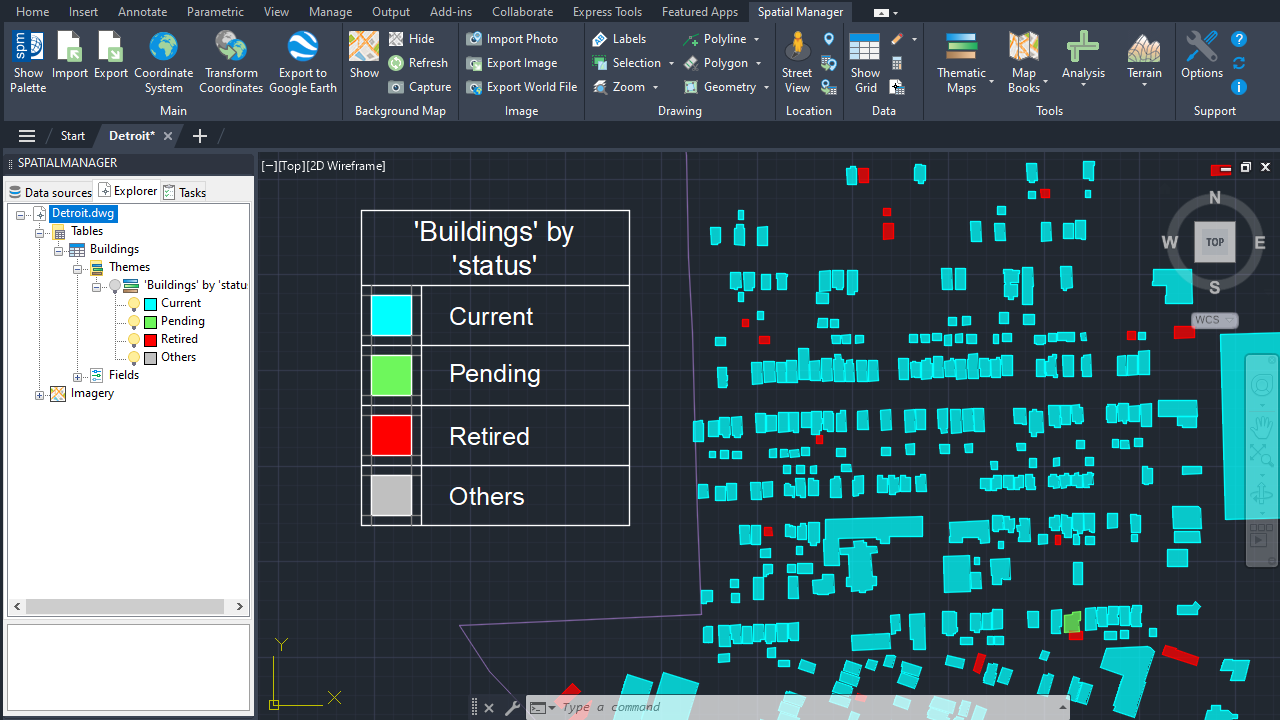
Thematic Map Legend
Note: Some features are available only in the Standard or Professional editions.



