Background maps can be displayed simultaneously in multiple views, including both model space and layout viewports. Whenever changes occur, the background maps are automatically refreshed so that they remain accurate and up to date in all active views. In addition, when printing or plotting, the maps are rendered at the optimal resolution.
Available for AutoCAD, BricsCAD, ZWCAD and GstarCAD.
1. Show multiple views
- To enable multiple views in model space, run the VIEWPORTS command and choose one of the predefined view arrangements.
2. Show background maps
- Run the SPMBGMAPSHOW command and select any of the predefined maps.
- The map will adapt to the scale of each viewport and update automatically when the viewports change.
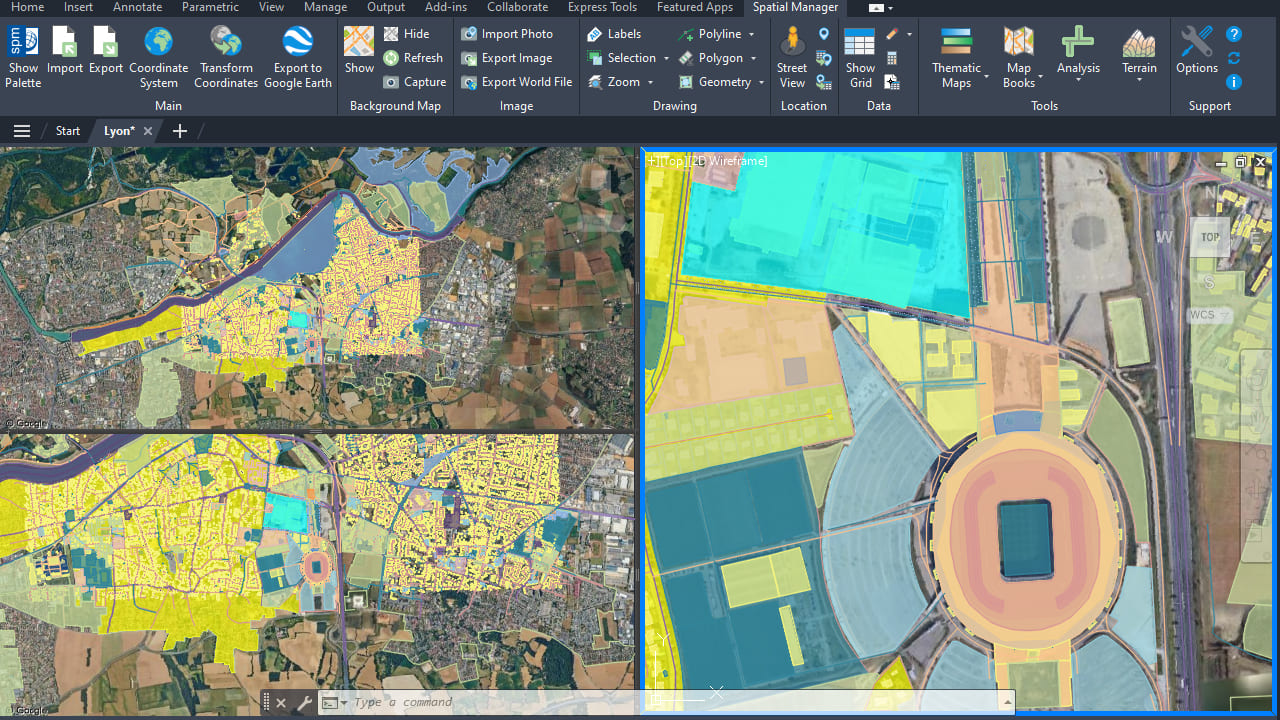
Maps in multiple viewports
3. Print/Plot background maps in multiple views
- Select your printer and desired settings.
- It is required to disable “Plot in background”, otherwise the plot process will not update the background map successfully.
- If, as in the example, there are hatches with transparency, enable “Plot transparency”.
- This will ensure the background map is displayed at the optimal resolution for the output.
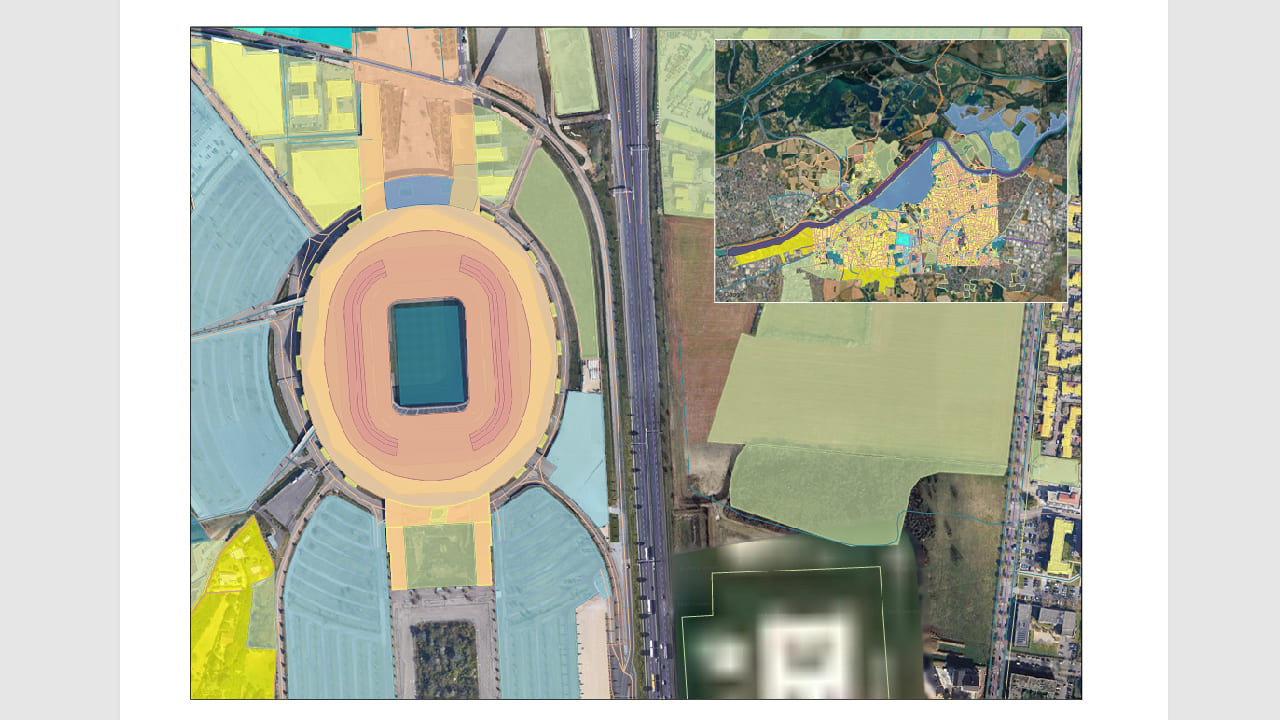
Print/Plot multiple viewports
Note: Some features are available only in the Standard or Professional editions.



