Thematic Maps allow you to view objects colored by their data values, and you can also apply these styles persistently to the objects, causing these colors to override the DWG colors. With this tool, the colorized DWG can be shared with other users without requiring the Spatial Manager plugin.
Available for AutoCAD, BricsCAD, ZWCAD and GstarCAD.
1. View object data in a grid
- Run the SPMDATATABLEGRID command; the data table grid opens.
- Review the data fields and identify which one will be used for thematization.
2. Create thematic map
- Run SPMTHEMATICMAP.
- Choose the thematic type.
- Select the data table and field.
- List the values and define the style for each one.
- A thematic map is a temporary configuration for dynamic styling and does not actually change the object colors.
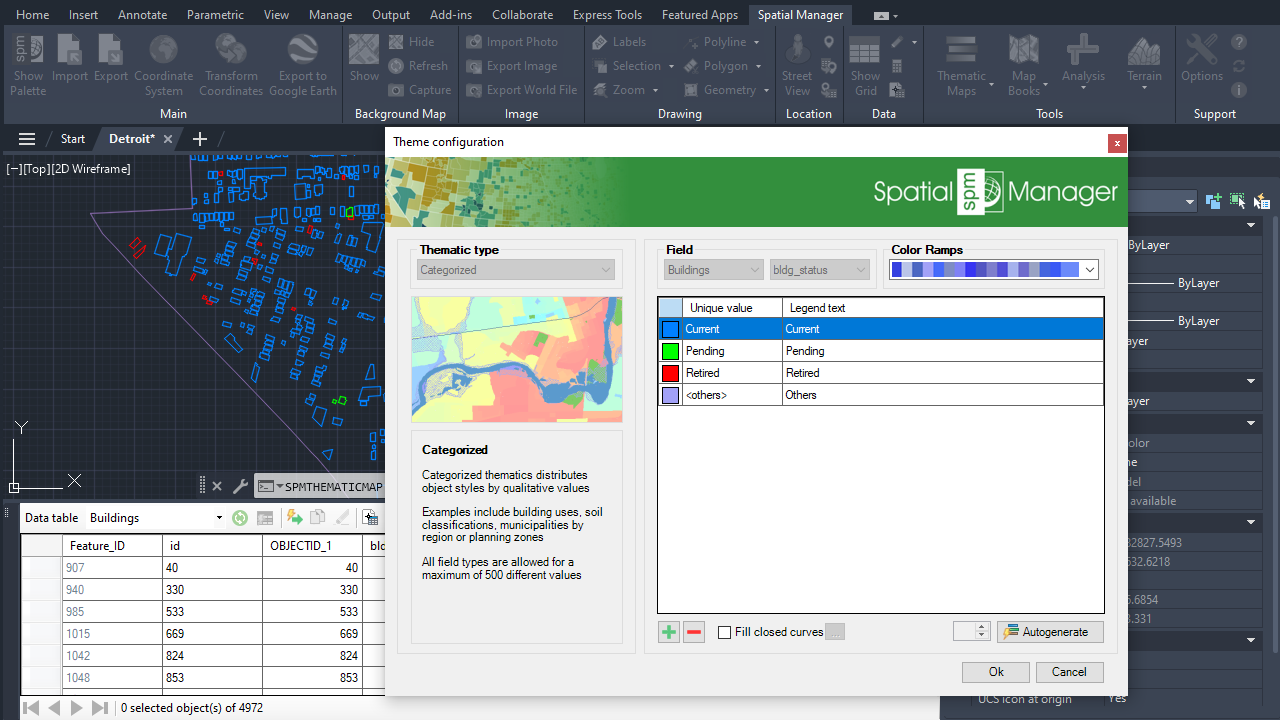
Thematic map configuration
3. Apply persistent styles
- Making a thematic map persistent allows you to override the actual colors of the objects.
- Persistent styles can be saved in the drawing and shared with other users.
4. Edit thematic map and fill polygons
- For closed polylines, a thematic map can also define fills, allowing them to be visualized as polygon surfaces.
5. Apply persistent styles and create hatches
- When a thematic map with fill options is made persistent, hatches are created with the color of each object.
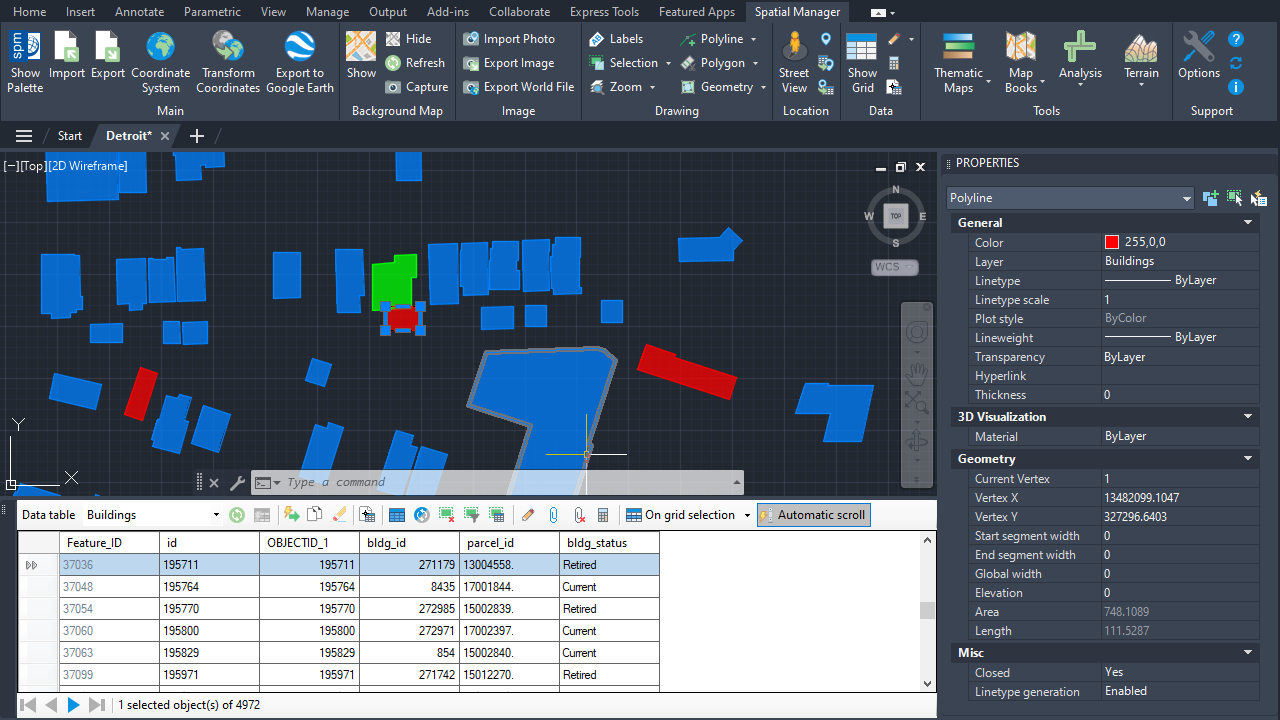
Persistent styles and hatches
Also available from the Spatial Manager main palette
- All options are also available from the main palette (the SPM command) in the Explorer tab.
Note: Some features are available only in the Standard or Professional editions.



