In CAD, polygons are usually represented as closed polylines due to drafting processes. This may be a problem when representing, visualising or exporting to GIS formats (or even Google Earth).
This post explains how to create polygons with holes, islands or multiple separate surfaces.
Available for AutoCAD, BricsCAD, ZWCAD and GstarCAD.
1. Show background map and search location
- On an empty drawing, enable a Background Map to use as a drafting base, execute SPMBGMAPSHOW and select any map.
- Go to your project location or execute SPMSEARCHLOCATION to locate it more quickly.
2. Draw polylines of a building with holes and islands
- Draw the building limits (perimeter, inner holes and islands if required).
3. Create hatches. For helping us in the process, hatches are used. Hatch is a entity type that is something similar to polygons
3. Create hatches. Hatches are used to support the process. A hatch is an entity type similar to polygons.
- Execute the _HATCH command and click the zones that are solid surfaces on the modelled object.
4. Export to Google Earth
- Publish to Google Earth by executing the SPMCREATEKML command (you can also export to common GIS formats using the SPMEXPORT command).
- View the result in Google Earth.
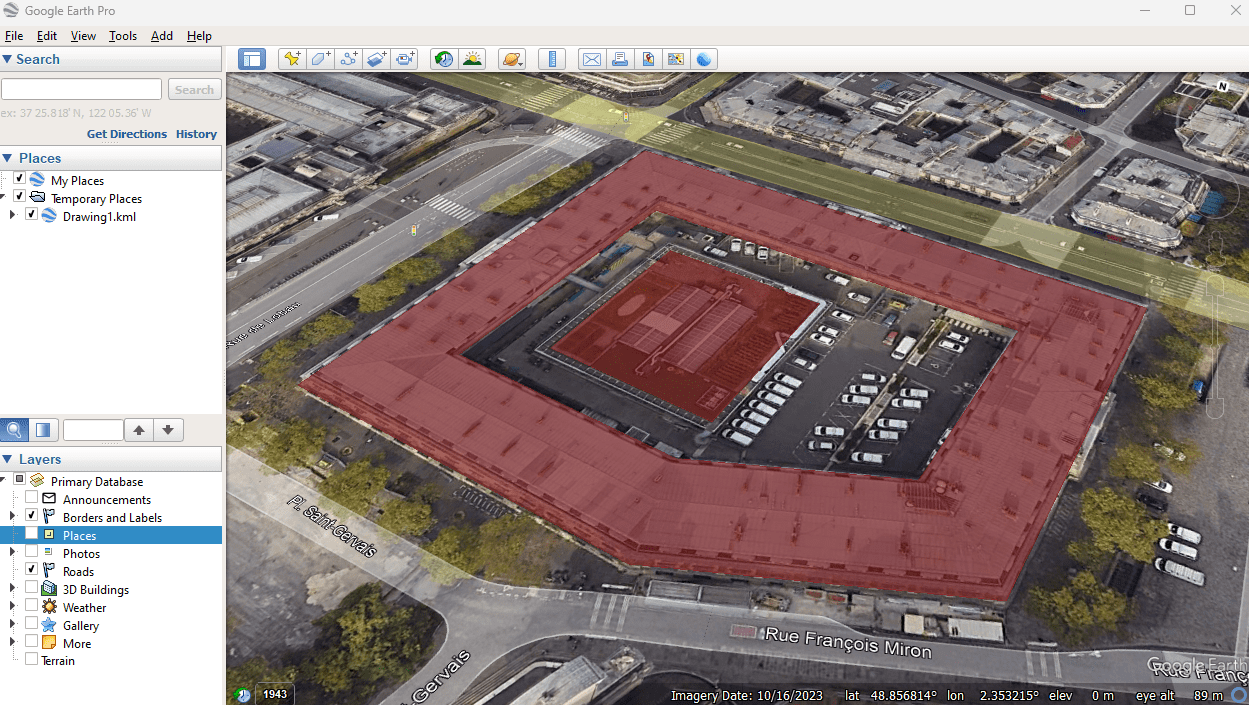
'Spatial Manager' created polygons in Google Earth
Note: Some features are available only in the Standard or Professional editions.



